
Simple Elegant Text Effect
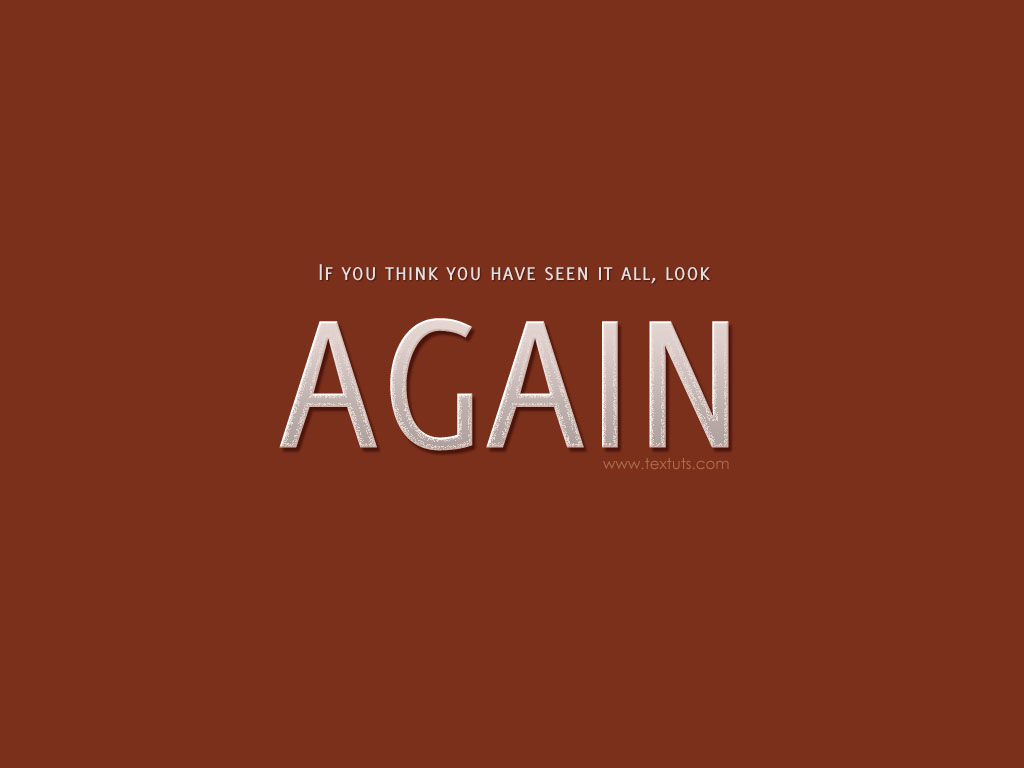
A simple tutorial to create an elegant text effect.
The Final Result
Tutorial Details
- Software Used : Photoshop
- Version : CS3
- Time : Less than 5 min.
Resources
- Delicious font.
Step 1
Create a new 1024 x 768 px document, and fill the Background with the color #7b301c. Create the text you want using the font Delicious, the Size 200 px, and the color #e0dfdf.

Step 2
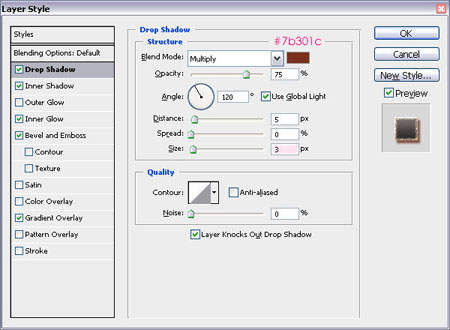
Double click the text layer to apply the following Layer Style:
– Drop Shadow
- Color :
#7b301c - Size : 3
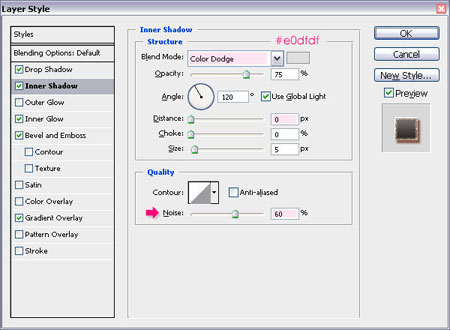
– Inner Shadow
- Blend Mode : Color Dodge
- Color :
#e0dfdf - Distance : 0
- Noise : 60
This will create a glitter-like effect.
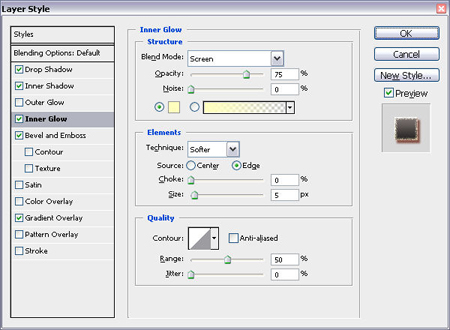
– Inner Glow
Use the default values.
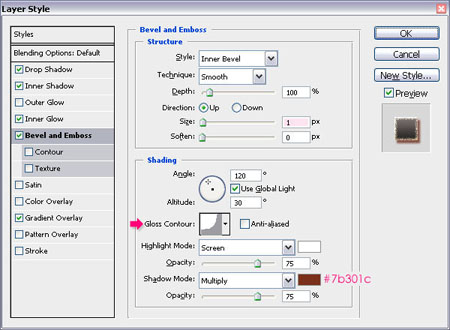
– Bevel and Emboss
- Size : 1
- Gloss Contour : Cove – Deep
- Shadow Mode – Color :
#7b301c
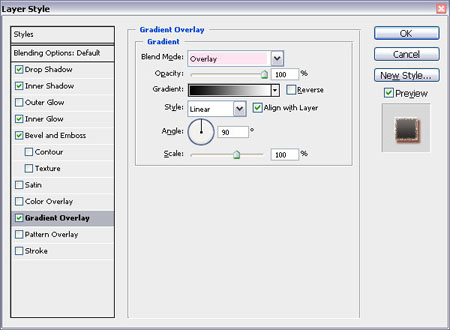
– Gradient Overlay
- Blend Mode : Overlay
And that’s it!
Did you enjoy this post? Please consider donating to help us cover our server costs.




Latest Comments
Thanks..^^
Can you please share font?
Because I couldn’t find it.
[email protected]
You can download it here http://www.josbuivenga.demon.nl/delicious.html (at the bottom of the page).
Thank you so much..^^
I found it..^^
nice tutorial i really love text tutorials for photoshop 🙂
Glad you do 🙂
Thanks for the comment.
Thanks for the tutorial, I really like it. For me, you did the instructions clearly…
Thank you so much 🙂